- Definition Media plan import
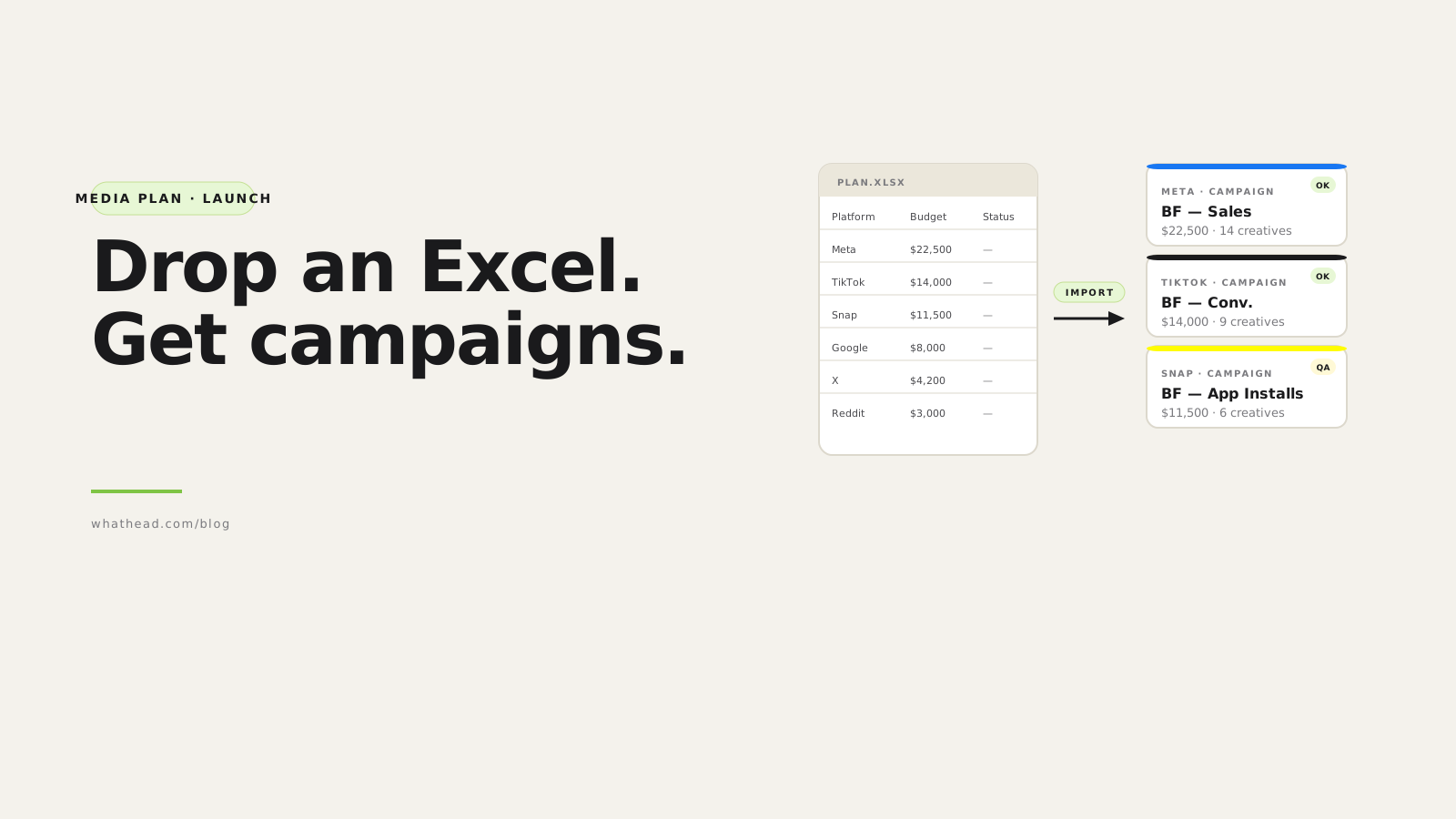
- Media plan import turns spreadsheet rows into structured campaign drafts. The workflow maps columns to platform fields, validates missing or incompatible values, connects creative assets, and creates a reviewable campaign tree before launch.
Every performance manager knows the moment: the media plan is approved, the budget is signed off, the creative is ready, and now the real work starts.
Someone still has to translate rows into campaigns, ad sets, ads, budgets, dates, objectives, landing pages, tracking, audiences, and platform-specific settings. That translation is where errors enter.
Whathead makes the spreadsheet operational. Instead of copying cells into platform forms, the team maps the plan once, reviews the campaign structure, fixes invalid rows, and launches from a controlled workspace.
Copy-paste trafficking vs structured import
Manual trafficking
Rows become clicks- Each platform rebuilt separately
- QA happens after setup
- Errors hide inside platform screens
Whathead import
Rows become campaign structure- Columns map to real fields
- Invalid rows surface immediately
- Creative and tracking attach before launch
What this looks like in the workspace
- Column mapping
Turn plan fields into platform-ready campaign, ad set, and ad fields.
- Validation before build
Catch missing dates, wrong objectives, budget-level conflicts, and bad URL fields.
- Visual campaign structure
Review what will be created before it becomes spend.
From messy request to controlled publish
- 01UploadStart from the approved spreadsheet
- 02MapMatch columns to paid media fields
- 03ValidateFix errors before setup
- 04AttachConnect creative and tracking
- 05PublishLaunch from a reviewed structure
The team gets a better handoff
- Media planning stays connected to execution
- Campaign builders see what each row becomes
- Account managers can review structure without opening every platform
- Launch QA happens before the first dollar spends
The spreadsheet should be the starting point, not a manual typing assignment for the trafficking team.
Turn your media plan into campaign structure in the Whathead media plan workflow, then review the visual builder before anything goes live.
Why media plan execution breaks
Media plans break during execution because spreadsheet logic and ad platform logic don't match perfectly.
Common failure points
- Wrong campaign objective selected in the platform
- Daily budget entered as lifetime budget
- Old start dates copied from last month's sheet
- Missing final URLs or broken UTM parameters
- Creative names that don't match actual files
- One platform launched correctly while another was missed
The better workflow
From spreadsheet to publish
- 01Upload.xlsx / .csv / Sheets
- 02Mapcolumns → fields
- 03Validatecatch issues early
- 04Attachcreative + media
- 05Reviewtree → publish
- Upload the spreadsheetDrop your media plan in any format — .xlsx, .csv, or Google Sheets.
- Map the columnsWhathead detects standard headers and offers a mapping. Adjust once per template.
- Validate the rowsCatch missing fields, invalid objectives, bad dates, broken URLs, and naming-rule misses.
- Attach creative assetsPull from the media library or upload. Match files to ad rows automatically.
- Review the campaign treeSee campaigns, ad sets, and ads grouped before publish. Approve or edit anything.
What the preview looks like
Each row becomes a draft campaign. You see the platform, the budget, the creative count, and the readiness status — before anything publishes.
| Platform | Campaign | Budget | Creatives | Status |
|---|---|---|---|---|
 Meta Meta | BF — Sales | $22,500 | 14 | Ready |
 TikTok TikTok | BF — Conversions | $14,000 | 9 | Review |
 Snap Snap | BF — App Installs | $11,500 | 6 | Draft |
 Google Google | BF — Search | $8,000 | 4 | Waiting |
Three platforms, four campaigns, one review pane. Approve or fix anything before publish.
Recommended columns for a launch-ready spreadsheet
- Platform — determines which account and rules apply
- Campaign name + objective — campaign label and delivery options
- Budget type and amount — daily or lifetime
- Start / end date — prevents accidental immediate launches
- Market and audience — geo target + segment intent
- Placements — feed, story, reel, search, network
- Primary text, headline, CTA — ad copy + platform CTA values
- Final URL + UTMs + creative file — destination, reporting, and asset link
Map columns to campaign fields
Different clients have different media plan formats. Column mapping lets you keep each format and still execute the same way.
Example mappings
- "Channel" → Platform
- "Flight start/end" → Start/End date
- "Spend" → Budget amount
- "Asset" → Creative file
- "Destination" → Final URL
Validate before launch
Before a plan becomes campaigns, the workflow flags:
- Missing required fields
- Unsupported objectives
- Invalid date ranges
- Budgets that are zero or blank
- URL fields without valid links
- Creative rows with no matching asset
- Optimization goals that don't match the objective
Attach creative assets early
The media plan references creative names. The ad platform needs actual files or existing media IDs. That gap is where teams lose time.
- Which ads already have media
- Which rows are missing assets
- Which assets are the wrong aspect ratio
- Which creatives can run on which placements
Review the campaign tree before publish
Media plans often contain repeated values. Multiple rows under one campaign. Several creatives under one ad set. A market needing separate ad sets.
Run through this before you click "Launch"
- Every row has a platform
- Every campaign has a valid objective
- Budgets are numeric and use the right currency
- Start dates are not in the past
- End dates filled where the campaign is not evergreen
- Final URLs resolve correctly
- UTMs follow the reporting convention
- Creative file names match real assets
- Market names are consistent
- Naming-convention fields are complete
- Ad sets split by market / audience as intended
- Budgets assigned at the right level
Frequently asked questions
What is a media plan spreadsheet?
A media plan spreadsheet is a planning document that lists the campaigns, budgets, dates, audiences, platforms, creative assets, and tracking fields needed for a paid media launch.
Can a media plan spreadsheet become live campaigns automatically?
It can become launch-ready campaign drafts. It should still go through review — a good workflow imports, maps, validates, and previews the structure before publishing.
What should be included in a paid media plan template?
At minimum: platform, campaign name, objective, budget, dates, market, audience, ad name, creative file, final URL, and tracking fields.
Why do media plan imports fail?
Inconsistent column names, missing required fields, invalid platform values, old dates, budget format issues, or creative assets that don't match the plan.
How much does Whathead cost?
$20/month flat, all 8 ad platforms included. 14-day free trial, no credit card.
Written by the Whathead team. We build the operational workspace for paid media teams across Meta, TikTok, Snapchat, Reddit, LinkedIn, Google, and X. Last reviewed May 16, 2026.