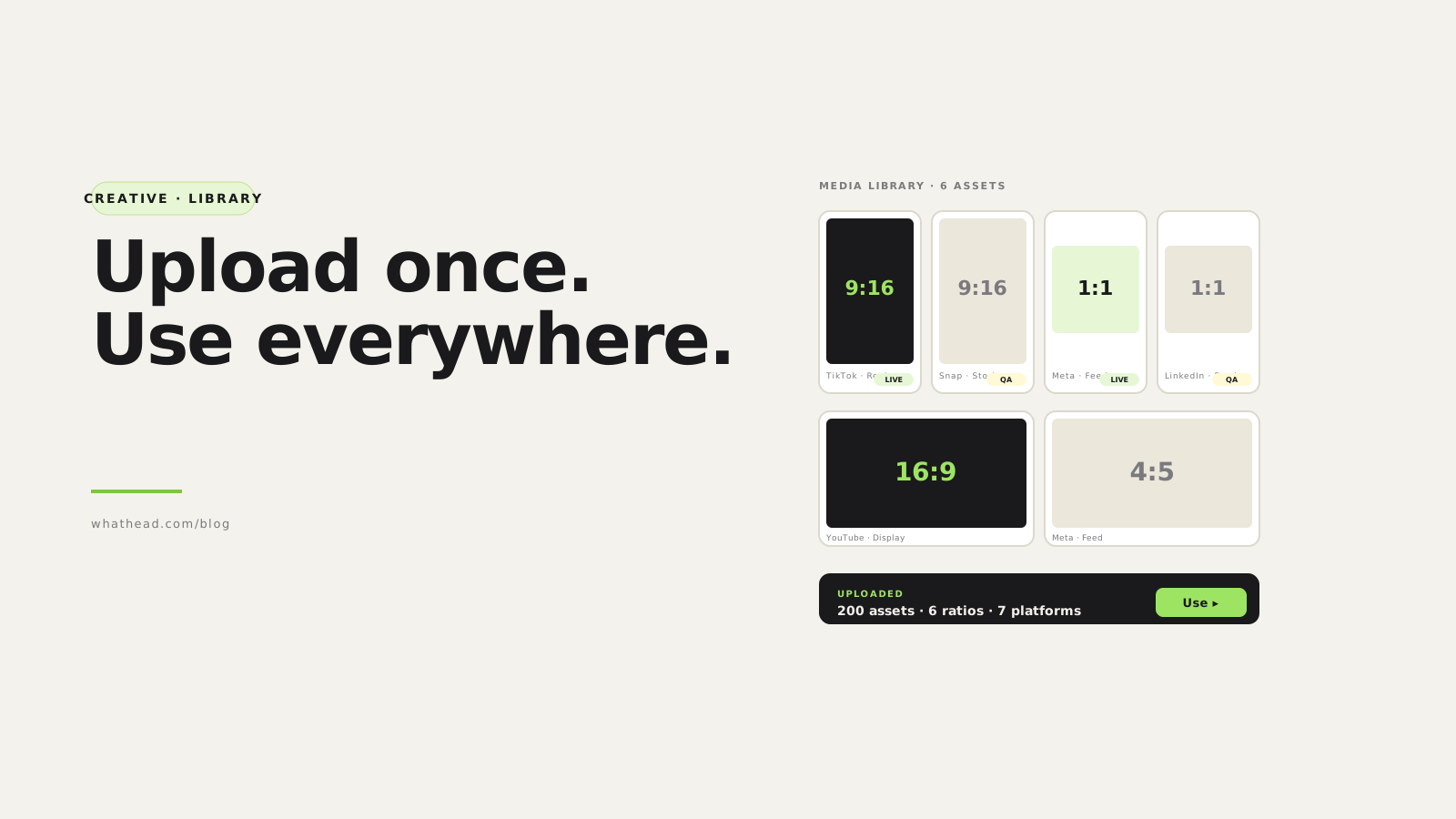
- Definition Bulk creative upload
- Bulk creative upload is the workflow of bringing many approved creative assets into a usable media library, validating them, organizing them, and assigning them to campaign structures at scale.
Creative is what the audience sees. Creative operations are what the team feels.
The same image exists in three folders. A video has the wrong thumbnail. A file was uploaded to one platform but not another. The media buyer is trying to build ads while asking the creative team which version is final.
Whathead turns creative files into usable campaign assets. Upload once, organize once, select from the media library, and attach assets to the campaign tree where the launch actually happens.
Folder-based creative ops vs media-library workflow
Folder chaos
High friction- Upload files platform by platform
- Lose track of final versions
- Manually match assets to ads
Whathead media workflow
Reusable assets- Upload or select from library
- Keep media metadata with the asset
- Attach creative inside campaign build
What this looks like in the workspace
- Media library selection
Pick existing images and videos without re-uploading.
- Multi-asset workflows
Use multiple selected assets as separate posts/ads or grouped creative where the platform supports it.
- Creative launch QA
Check names, formats, thumbnails, URLs, and asset-to-ad matching before publish.
From messy request to controlled publish
- 01UploadAdd files or choose library assets
- 02ValidateCheck basic creative requirements
- 03OrganizeKeep names and metadata clean
- 04AssignAttach assets to ads or posts
- 05ReuseCarry assets into future launches
What this fixes for the team
- Repeated uploads across platforms
- Confusion between final, draft, and resized creative files
- Missing thumbnails or preview URLs during review
- Creative assets disconnected from campaign structure
The creative is approved. The work should not restart just because each platform has a different upload screen.
Use Whathead to upload creative assets once, reuse them from the media library, and launch the same asset set through the campaign builder.
Why creative upload slows launches
A typical creative folder
- 9:16 videos for Stories, Reels, TikTok, and Snap
- 1:1 square images for feeds
- 4:5 vertical feed assets
- 16:9 video cuts
- Static carousels and thumbnails
- Localized copy versions
- Existing posts that should be reused
- Final approved and old draft versions sitting in the same folder
Build a creative intake standard
Bad file names vs. an intake standard
Bad file names
- "final.mp4"
- "final_final.mp4"
- "ad1.png"
- "whatsapp image.jpg"
- "copy of video.mp4"
Recommended pattern
- brand_summer_uk_prospecting_9x16_video_v03.mp4
- client / campaign / market / audience
- format / variant / version
- Tells the team what the asset is without opening it
Validate specs before upload
- File type — platform may reject unsupported formats
- Aspect ratio — determines placement compatibility
- Resolution — low-res reduces quality or fails review
- Duration — video limits differ by platform and placement
- File size — large files may fail upload or processing
- Thumbnail — some video workflows need a preview image
- Safe zones — text may be covered by UI overlays
- Language — local market campaigns need localized assets
Creative specs cheat sheet
Aspect ratio guide
| Best use | Typical ratio | |
|---|---|---|
| Vertical video | TikTok, Snap, Reels, Stories, X vertical | 9:16 |
| Square image | Feed placements, simple statics | 1:1 |
| Vertical feed image | Meta feed, some social placements | 4:5 |
| Landscape video | YouTube-style or web placements | 16:9 |
| Carousel images | Product storytelling, multiple offers | 1:1 |
| Thumbnail | Video previews, media library browsing | 16:9 |
Upload once, reuse often
A media library changes the creative workflow.
| Asset | Format | Platform | Status |
|---|---|---|---|
 Meta — summer_9x16_v3.mp4 Meta — summer_9x16_v3.mp4 | 9:16 · 14s | Meta · Reels | Approved |
 TikTok — ugc_creator_a.mp4 TikTok — ugc_creator_a.mp4 | 9:16 · 22s | TikTok · In-Feed | Approved |
 Snap — lens_ar_v2.zip Snap — lens_ar_v2.zip | AR · Lens | Snap · Lens | Review |
| Meta — summer_1x1_v3.jpg | 1:1 · static | Meta · Feed | Approved |
One library. Every aspect ratio. Filter by platform, format, or status.
- A single place to browse approved assets
- Search by name, format, or platform
- Reduced duplicate uploads
- Faster assignment to ads
- A cleaner record of what creative is available
Existing posts, media IDs, and platform-native assets
Not every creative asset is a raw file.
- Facebook or Instagram post
- TikTok Spark Ad
- X tweet or card
- Reddit post
- LinkedIn post
- Platform media ID
Bulk upload QA checklist
- File names follow the agreed pattern
- Every file has an owner or campaign mapping
- Assets are final approved versions
- Aspect ratios match placements
- Videos have thumbnails where needed
- No duplicate old versions are selected
- Market and language match the campaign rows
- Existing posts are intentionally reused
- Platform media IDs are preserved where needed
- Final creative assignment is visible before publish
Frequently asked questions
What is bulk creative upload?
Bulk creative upload is the process of uploading and organizing many ad assets at once so they can be reused in campaign building and launch workflows.
Why should paid media teams use a creative library?
A creative library helps teams find approved assets, avoid duplicates, match files to campaigns, and reuse winning creative across platforms.
Should existing posts be treated like uploaded files?
No. Existing posts carry platform-specific IDs, engagement, or restrictions.
What is the most common creative upload mistake?
Attaching the wrong version or wrong aspect ratio to an ad because file naming and campaign mapping were unclear.
How much does Whathead cost?
$20/month flat, all 8 ad platforms included. 14-day free trial, no credit card.
Written by the Whathead team. We build the operational workspace for paid media teams across Meta, TikTok, Snapchat, Reddit, LinkedIn, Google, and X. Last reviewed May 16, 2026.